
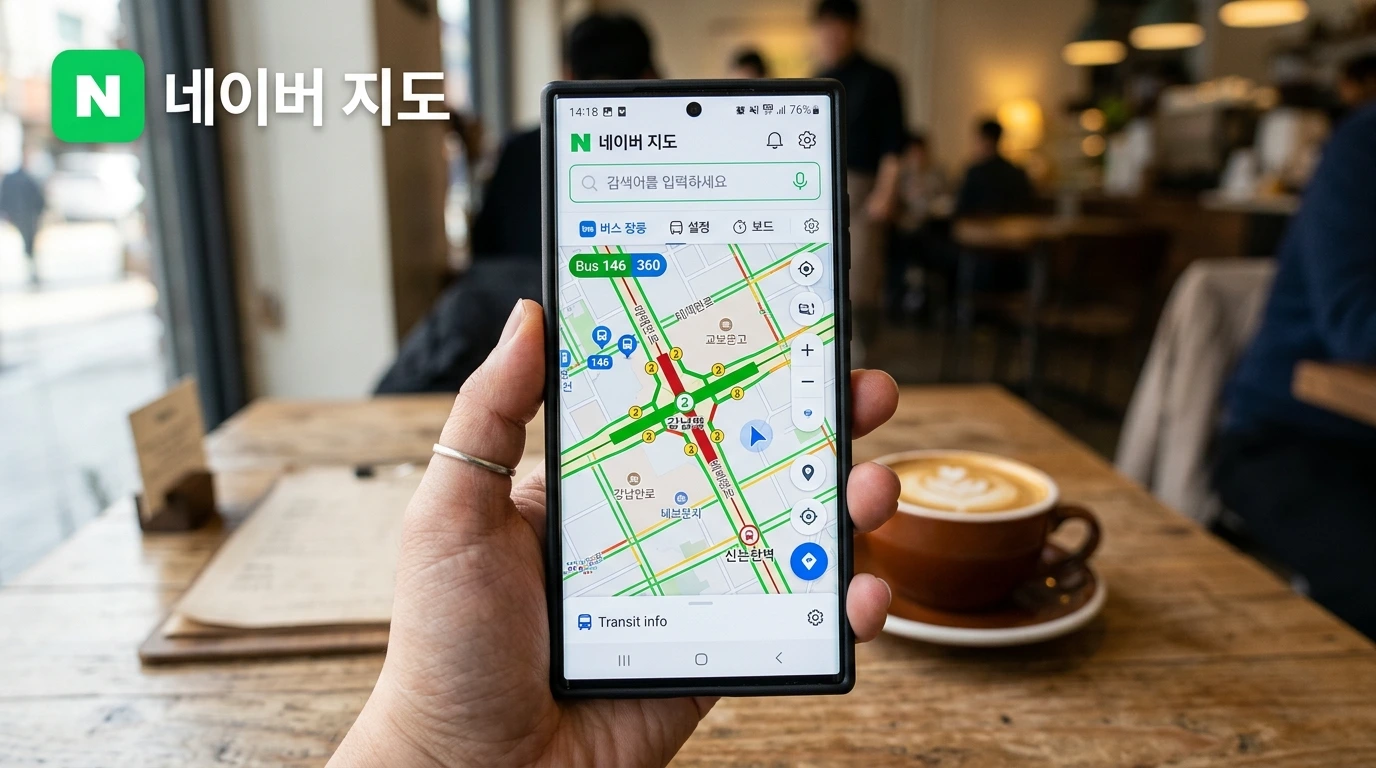
Navigating a new country can be one of the most thrilling yet daunting parts of traveling. If you have ever tried wandering through the bustling streets of Seoul or the scenic coastal roads of Busan relying on the same navigation tools you use back home in North America, you might have found yourself walking in circles. Having spent extensive time navigating the vast avenues of the US and Canada where global mapping apps work flawlessly, I quickly realized that Korea operates on a completely different digital wavelength.
In Korea, global mapping giants simply do not offer the precision and local integration required to get around efficiently. Whether you are looking for an obscure hidden café in an alleyway or trying to figure out which subway exit will save you a ten-minute walk, you need a local tool. That is where Naver Map comes in. It is the absolute lifeline for anyone stepping foot in the country. Let us dive into why this app is your best travel companion and exactly how you can set it up to navigate Korea seamlessly in English.
Why You Need Naver Map Over Global Alternatives in Korea
When travelers first arrive in Korea, their instinct is to open the mapping app they already have installed on their phones. However, due to national security regulations regarding mapping data, foreign companies are restricted from storing highly detailed local topography on overseas servers. This means that your usual go-to global map will lack crucial information like accurate walking directions, real-time bus tracking, and detailed subway transfers. You might find yourself staring at a blank grid instead of a vibrant city map.
Naver Map, on the other hand, is built locally and is flawlessly integrated into the Korean infrastructure. It provides hyper-accurate transit data, real-time traffic updates, and walking routes that guide you through complex underground subway stations and winding hillside neighborhoods. From finding a highly-rated local barbecue joint to knowing exactly which bus will get you to your destination the fastest, this app is an indispensable survival tool for tourists, international students, and expats alike. It bridges the gap between feeling lost and exploring like a seasoned local.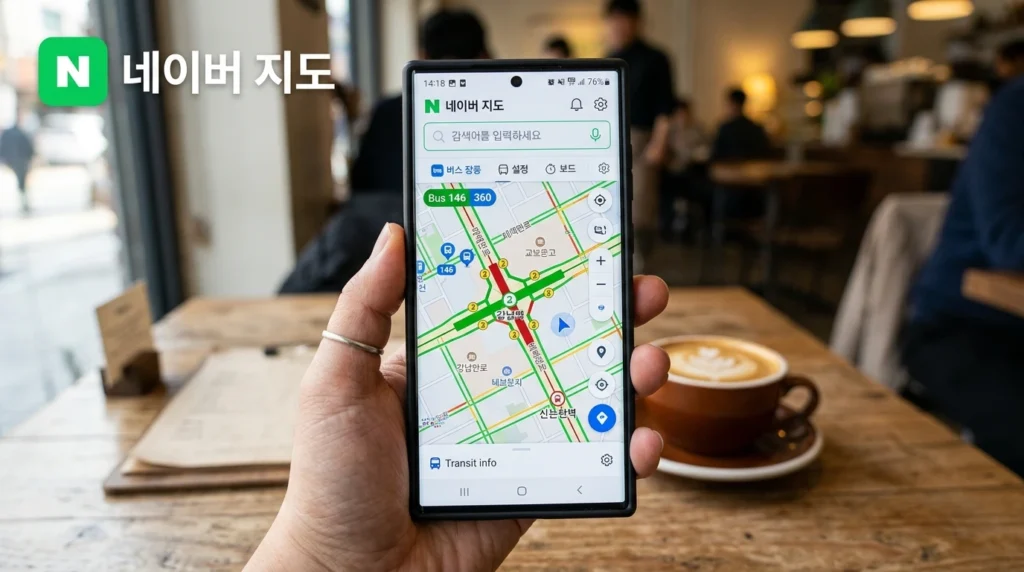
Step-by-Step Guide to Changing Naver Map to English
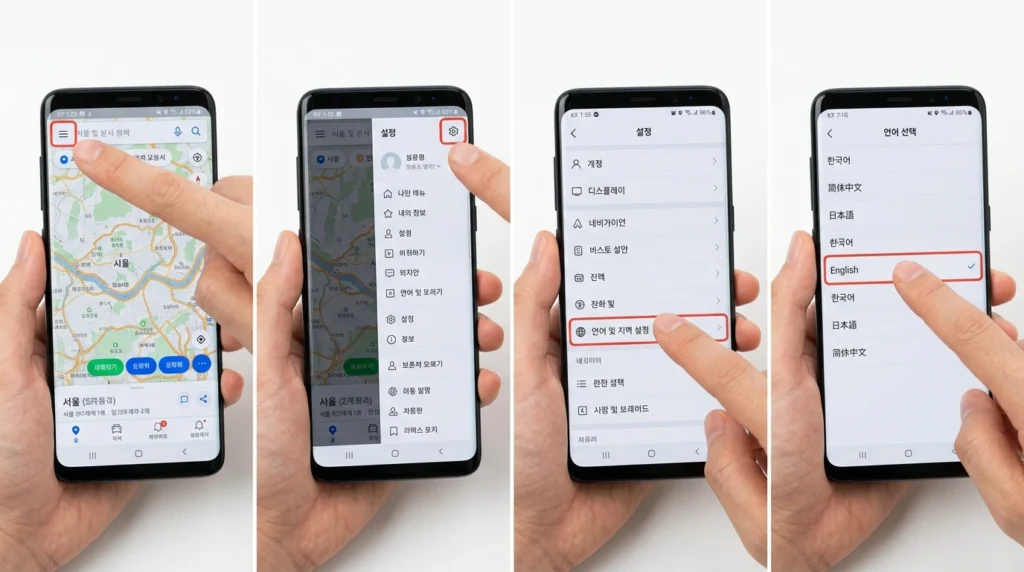
The beauty of Naver Map is that you do not need to be fluent in the local language to use it. The app offers robust support for English, Chinese, and Japanese. While the app usually detects your smartphone’s system language and adjusts automatically, there are times when it might default to the local language. Here is a simple guide to manually switching the app to English:
- Launch the Naver Map application on your smartphone. On the main home screen, locate and tap the menu button, which looks like three horizontal lines (often called a hamburger icon) situated in the top-left corner.
- Once the menu slides out, look for the gear icon located in the top-right corner of the menu panel. Tap this to enter the Settings menu.
- Scroll down the settings list until you find the ‘Language’ option (it might be written as ‘언어’ if your app is currently in the local language). Tap on it, and select ‘English’ from the list of available languages.
- After making your selection, the app will automatically restart to apply the new language settings. If for some reason the language does not update immediately, simply force-close the app from your phone’s background tasks and open it again. You will be greeted with a fully translated interface.
Incredible Features Tailored for International Travelers
Once your app is set to English, a whole new world of convenience opens up. One of the standout features is the route optimization. Simply type in your destination, hit “GO,” and the app will generate the fastest routes across various transportation modes—subway, bus, walking, or driving—all beautifully detailed in English. It even tells you exactly how long the journey will take and how much the fare will be.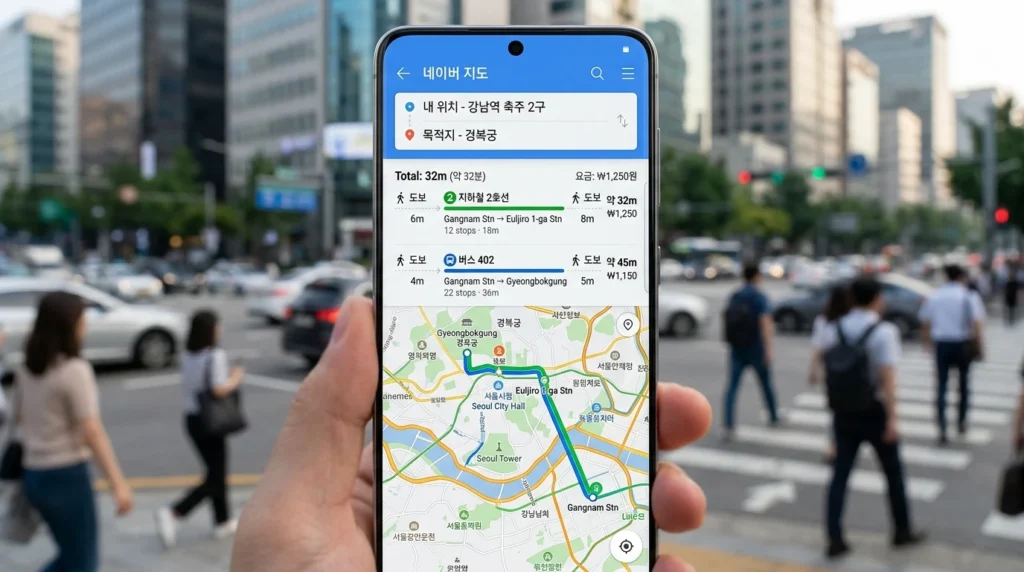
Another massive advantage is the dual-language display for major locations. Cities like Seoul, Busan, and Incheon, along with major landmarks, are displayed in both English and the local script. This is incredibly helpful when you need to show your screen to a taxi driver or ask a local for directions. You can pronounce the English name, but also point to the local characters to avoid any confusion.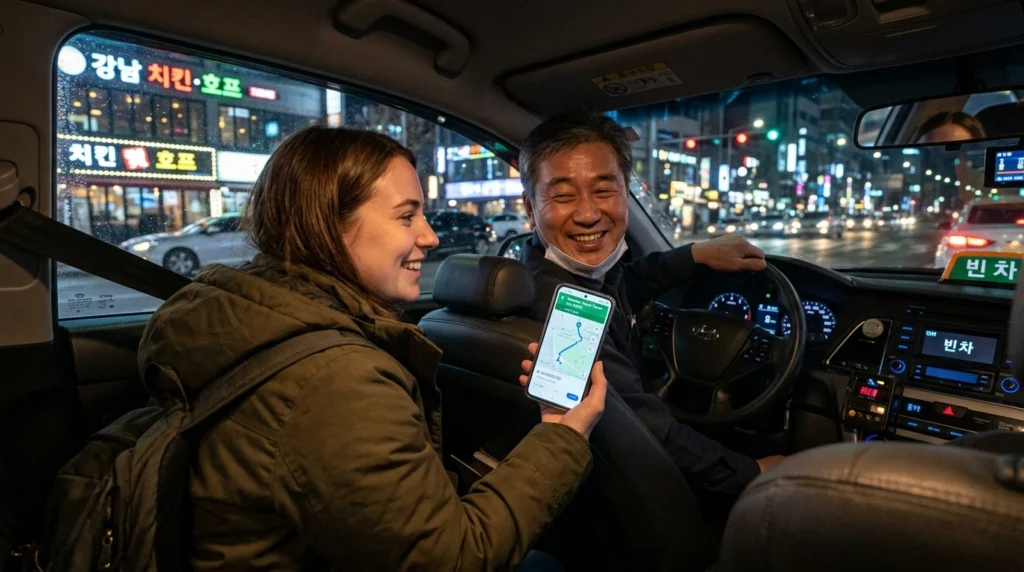
Furthermore, the category search buttons located right below the search bar are a lifesaver. Without typing a single word, you can tap icons for cafes, restaurants, convenience stores, hospitals, and pharmacies. The app immediately populates the map with nearby options. Most business pages show essential details like addresses, operating hours, and photo galleries in English, making it incredibly easy to figure out where to grab a late-night snack or a morning coffee.
Pro Tips: Overcoming the Language Barrier Like a Local
While Naver Map is exceptionally well-adapted for English speakers, covering about eighty percent of the essential navigation interface, there are a few areas where the local language still prevails. For instance, user reviews, personal blog posts attached to restaurant profiles, and the names of very small, independent mom-and-pop shops might remain untranslated.
To bridge this minor gap, seasoned travelers use a combination of apps. Downloading a dedicated translation app like Papago (which is developed by the same parent company as the map and excels at local nuances) or Google Translate is highly recommended. If you find a restaurant that looks amazing but all the reviews are in the local language, simply take a screenshot or copy the text and run it through your translation app. This dual-app strategy ensures you never miss out on hidden culinary gems or important local insights, allowing you to experience the rich culture and vibrant lifestyle with complete confidence.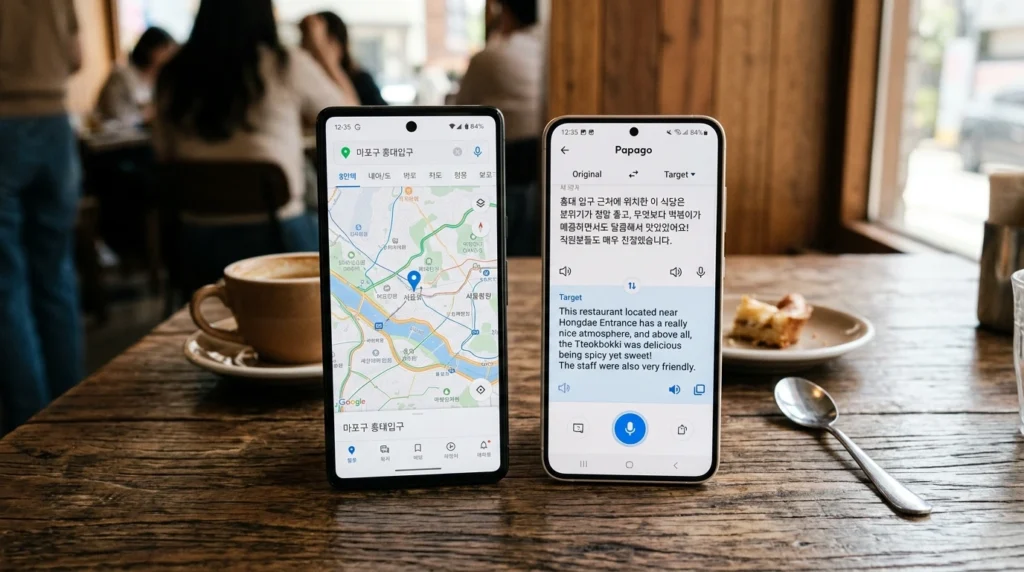
FAQ
Is Naver Map completely free to use?
Yes, the app is entirely free to download and use for all its core navigation and search features.
Do I need to create an account to use the map?
You do not need an account for basic navigation and searching. However, creating a free account allows you to save your favorite locations, bookmark restaurants, and create custom travel itineraries.
Does the app work offline?
No, you will need an active internet connection via Wi-Fi, a local SIM card, or an eSIM to load maps, get real-time transit updates, and search for locations.
Can I use it to call a taxi?
While you can see estimated taxi fares and routes, booking a taxi directly is usually done through other local ride-hailing apps, though some integrations exist depending on updates and account status.
Are the bus and subway arrival times accurate?
Absolutely. The app is deeply integrated with the local transit systems and provides real-time arrival data down to the minute.
Why are some smaller store names still not in English?
The translation covers the user interface, major landmarks, and verified business data, but user-generated content and very small businesses may only have their registered local names listed.
Can I use the app for walking directions in small alleyways?
Yes, its walking directions are incredibly precise and account for small alleyways, underground crosswalks, and even pedestrian overpasses.
Is there a way to read restaurant reviews in English?
Currently, user reviews are shown in the language they were written in. You will need to use a separate translation app to read them if they are not in English.
Does it show the cost of toll roads if I am driving?
Yes, if you choose the driving route option, the app calculates both the estimated fuel cost and any toll gate fees you will encounter on your journey.
What should I do if the app gets stuck in a different language?
Force-close the application and reopen it. If the issue persists, go back into the settings, switch it to another language temporarily, and then switch it back to English.
Can I search for locations using their phone numbers?
Yes! A great local trick is typing a restaurant or business’s phone number into the search bar, which will often pull up the exact location immediately.
Are hospital and pharmacy searches reliable in emergencies?
Yes, the category buttons for hospitals and pharmacies are highly reliable and will show you the closest open medical facilities, complete with their current operating hours.
📦 1. Ultimate Busan Food Box (Milmyeon, Dwaeji Gukbap, Chicken, Seafood)
💡 A comprehensive list of Busan’s most iconic local eats including pork soup, wheat noodles, fried chicken, and fresh seafood.